
Personas
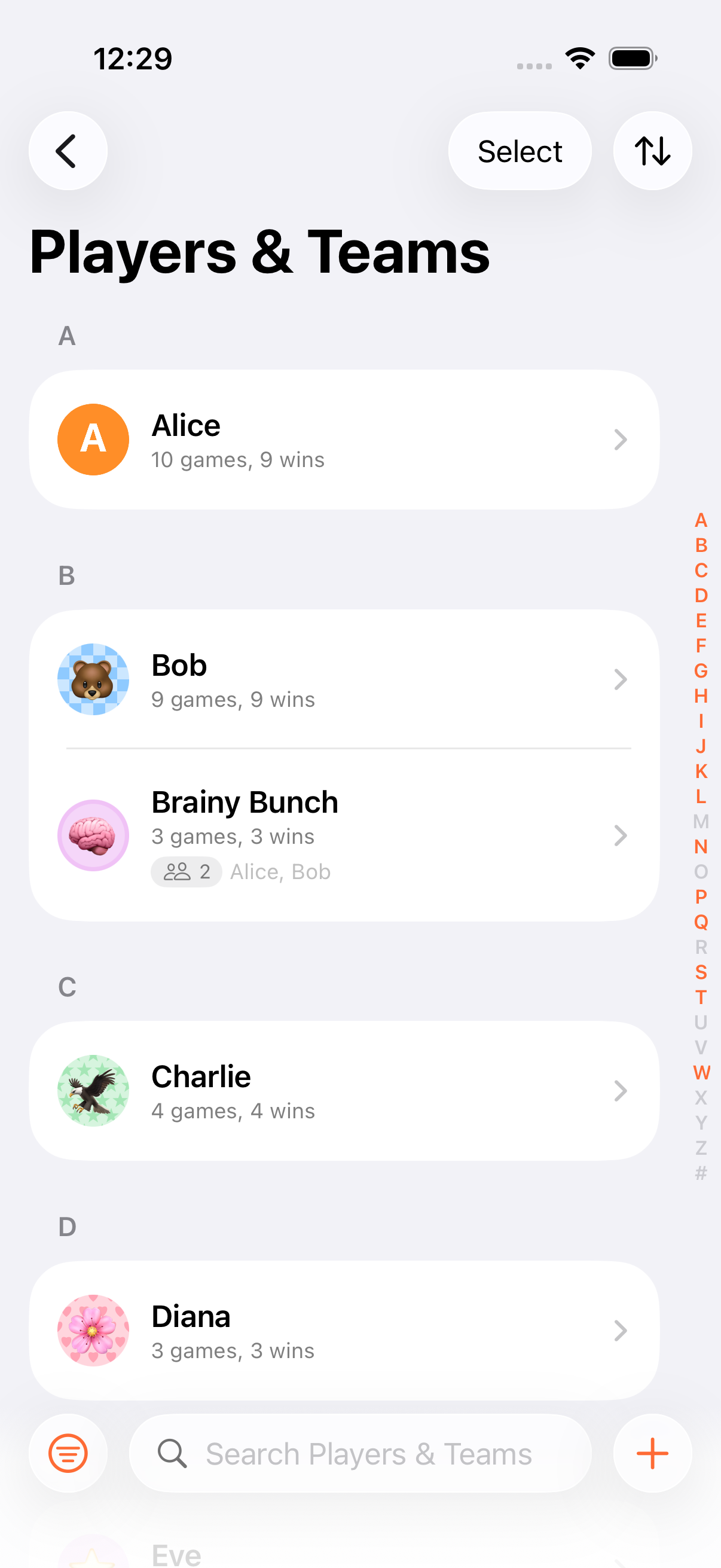
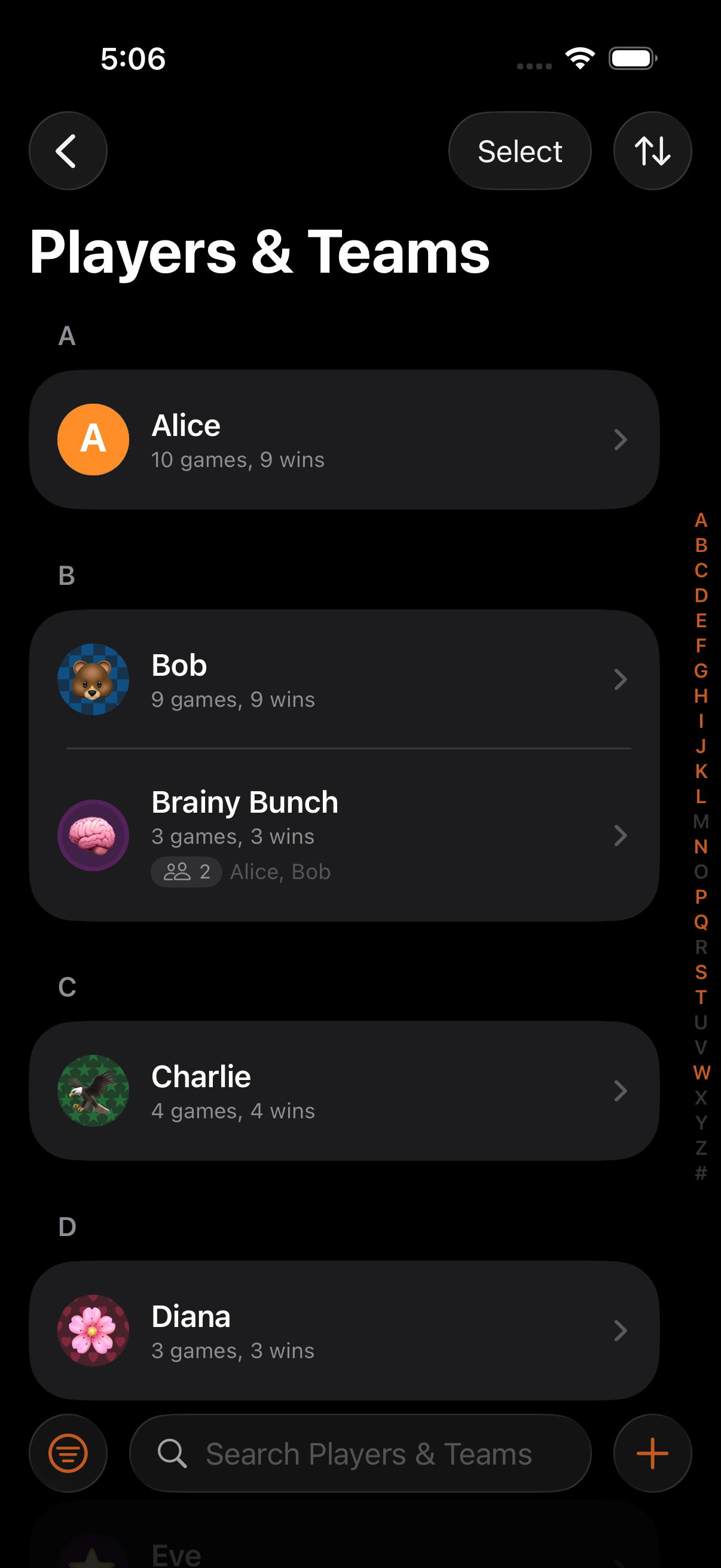
Personas are persistent player and team identities you create once and reuse across games. They save time, add personality, and track statistics that build up over every game you play.
Creating a Persona
Section titled “Creating a Persona”- Open the Persona Library from the game list menu
- Tap + to create a new persona
- Enter a name (up to 50 characters)
- Pick an avatar: see Avatars for the four input options
- Choose a color from 9 presets
- Optionally pick a background pattern
You can also edit any existing persona’s avatar inline from the player row in the Edit Players sheet. No need to drill into the library first.
Avatars
Section titled “Avatars”The avatar editor lives inline in the persona form with a live preview at the top and a row of four tiles below. Pick one and the matching editor slides in:
- Initials: a monogram derived from the persona’s name, tinted with their chosen color. Good for quick setup when you don’t want to pick anything else.
- Emoji: a curated grid of single emoji previewed in the persona’s color and pattern, with a session-recents row at the top and an 18-cell cap. Tap More… to open the full emoji keyboard. Stickers (including Memoji) pasted from the system keyboard are stored as image data and rendered with the right padding for transparent backgrounds.
- Photo: pick an image from your Photo Library. The crop pane is always visible inside the form: pinch and pan to frame, and the header preview updates live. Drafts persist per mode within a session, so flipping between Emoji and Photo doesn’t wipe a half-finished crop.
- Camera: a shortcut tile that opens the camera directly. The captured frame lands in the Photo crop pane. If camera access is denied or restricted, the tile disables itself and a tip row explains how to re-enable it in iOS Settings.
Only one avatar mode is active at a time. Switching modes is non-destructive within the session, but only the active mode is saved when you confirm the form.
Colors
Section titled “Colors”Nine preset colors: Red, Orange, Yellow, Green, Blue, Indigo, Purple, Pink, Teal. Colors appear as badges and highlights throughout the app, making it easy to identify each player at a glance.
Background Patterns
Section titled “Background Patterns”Four optional patterns add personality to a persona tile:
- Stripes
- Stars
- Checkers
- Hearts
Game Statistics
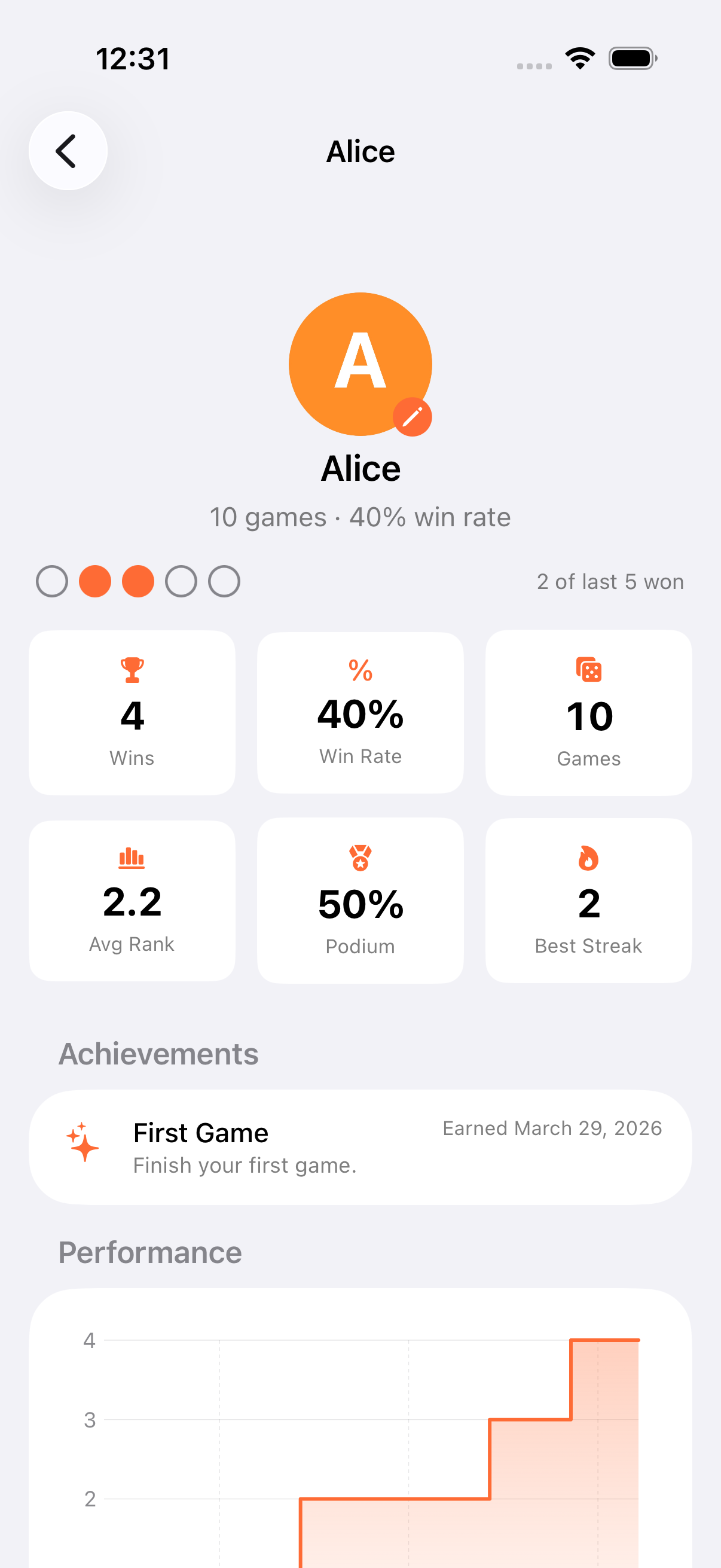
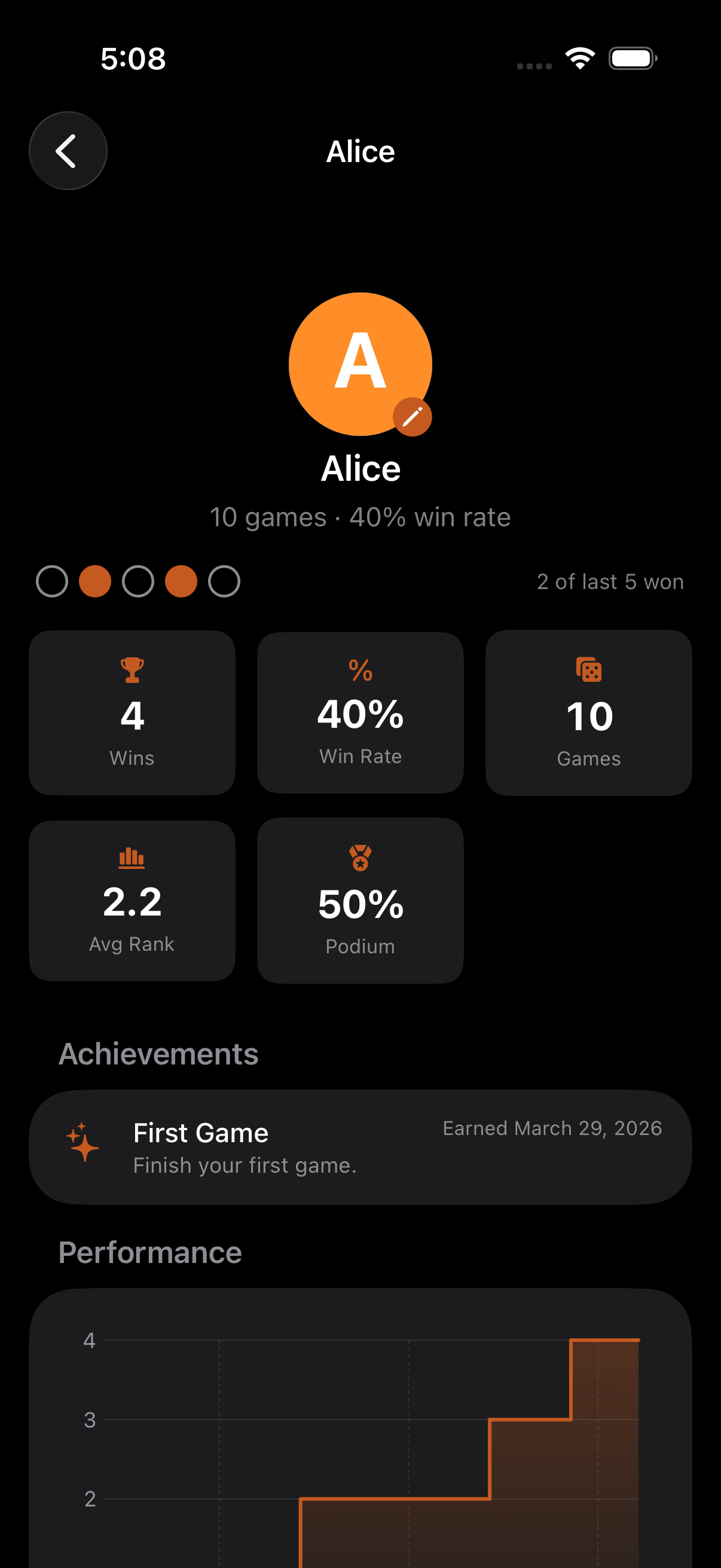
Section titled “Game Statistics”Every persona tracks statistics automatically across all games they’ve participated in. Tap a persona to see their stats breakdown: six cards in total:
- Games played: how many finished games this persona has appeared in
- Wins: total first-place finishes
- Win rate: wins as a percentage of games played
- Average finish: mean rank across all finished games
- Podium rate: how often this persona finishes in the top three
- Win streak: current run of consecutive wins, or longest run when none is active
Team Personas
Section titled “Team Personas”Personas aren’t just for individuals. Teams can have their own personas, and team personas can be linked to the personas of their members (a many-to-many relationship).
Using Personas in Games
Section titled “Using Personas in Games”When creating a game, tap the persona picker to add saved personas as players. Personas bring their name, avatar, color, and pattern into the game. Much faster than typing names manually. Organise them into persona groups to add a whole gaming group at once.
iCloud Sync & De-duplication
Section titled “iCloud Sync & De-duplication”Personas sync across all your devices via iCloud. If the same persona is created on multiple devices before syncing, the app automatically merges duplicates:
- Matching is case-insensitive: “Alice” and “alice” are treated as the same persona
- All game references are updated to point to the merged persona
Soft Delete
Section titled “Soft Delete”Deactivating a persona hides it from the picker but preserves historical game stats. Past games still show the original name and avatar.
- Create personas for everyone in your regular gaming group. It makes setup much faster
- Use distinctive avatars so you can identify players on the AirPlay display
- Group personas into persona groups for one-tap bulk selection
Related Features
Section titled “Related Features”- Persona Groups: Organise personas into named collections
- Teams: Team personas with linked members
- iCloud Sync: How sync works across devices
Do personas sync across devices?
Section titled “Do personas sync across devices?”Yes. Personas sync automatically via iCloud. Any temporary duplicates after setting up a new device are merged automatically.
Can I delete a persona that’s been used in games?
Section titled “Can I delete a persona that’s been used in games?”Yes. Deactivating or deleting a persona doesn’t affect past games. The player names, avatars, and scores in those games are preserved.
Can two personas have the same name?
Section titled “Can two personas have the same name?”The app uses case-insensitive deduplication, so “Alice” and “alice” are treated as the same persona and will be merged. “Alice” and “Alice S.” are treated as different personas.