
Kids Birthday Party
A walkthrough for using Kids Mode at a birthday party: big buttons, bright colours, kid-friendly badges, and celebrations that kids love.
The Scenario
Section titled “The Scenario”Six kids at a birthday party, a handful of party games (musical chairs, relay race, pin-the-tail). You need something simple (no numeric scores, just who wins each round) and the TV in the living room should show the leaderboard.
Step 1: Create a Kids Game
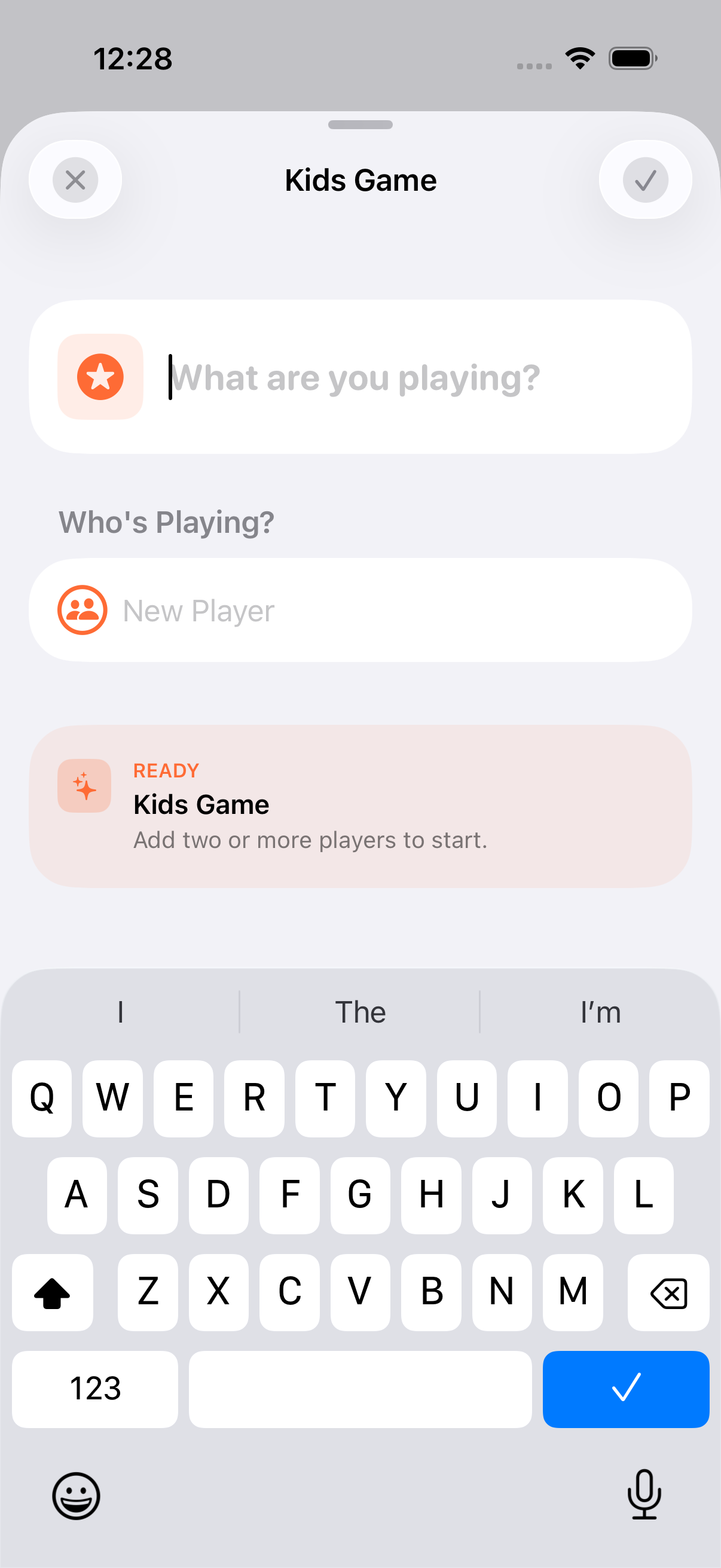
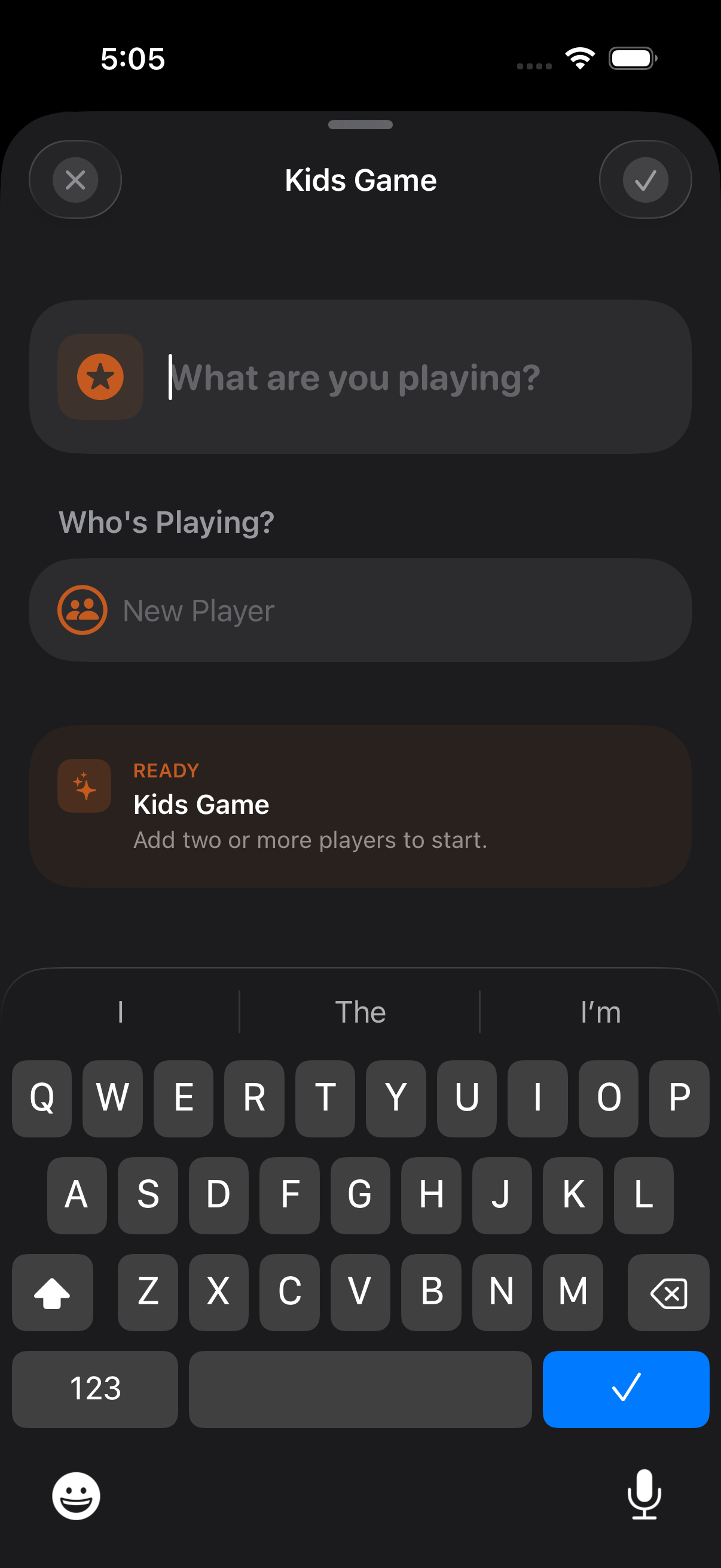
Section titled “Step 1: Create a Kids Game”- Tap + to create a new game
- Toggle Kids Game on
- Add the kids: type names or pick from personas
- Kids Mode uses Win/Draw/Loss with the Classic preset (1 / 0.5 / 0) and shows a simplified, colourful interface
Step 2: Set Up the TV
Section titled “Step 2: Set Up the TV”AirPlay your iPhone to the TV so every kid can see the leaderboard:
- Open Control Centre → Screen Mirroring → pick your Apple TV
- The app shows a TV-optimised leaderboard with large fonts and celebration animations
- No need to crowd around your phone
See AirPlay for details.
Step 3: Score Each Round
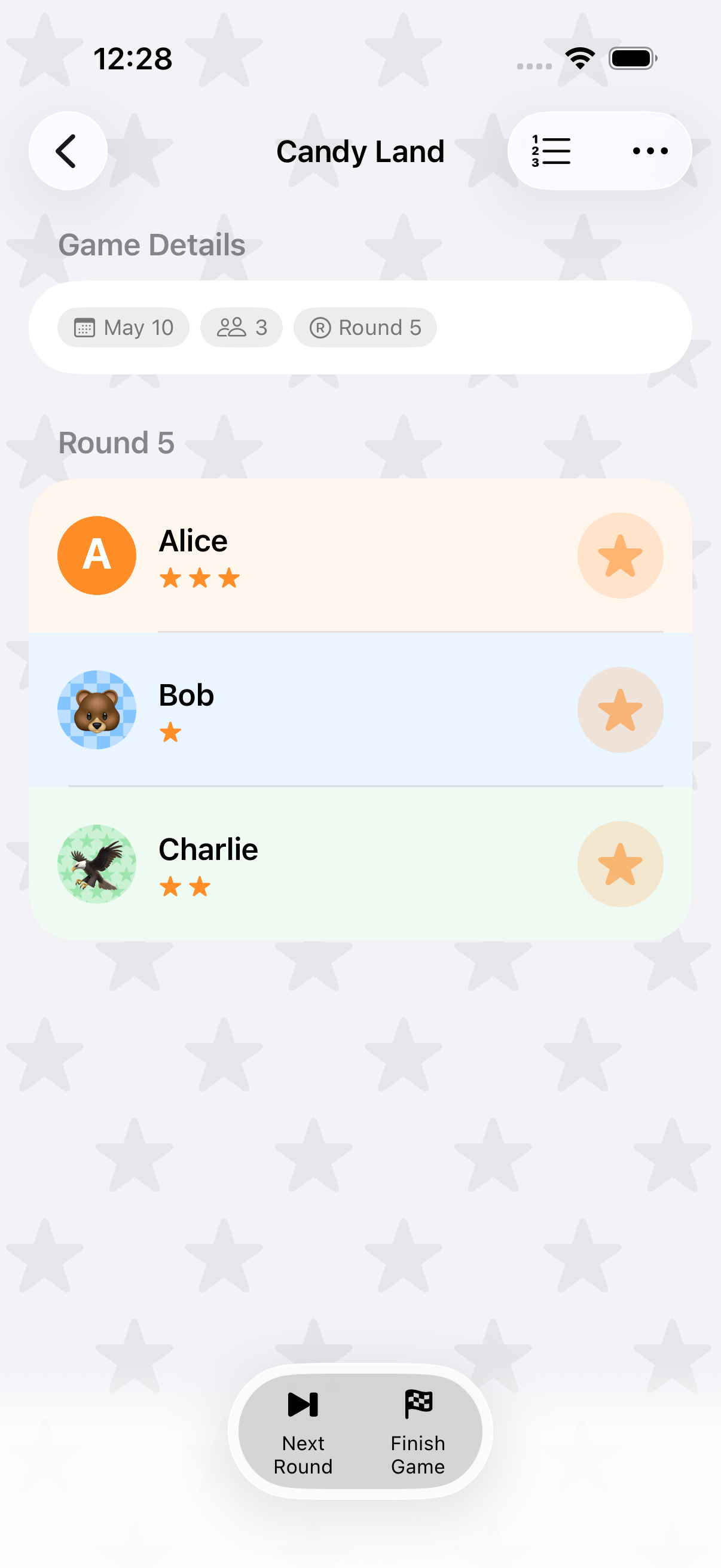
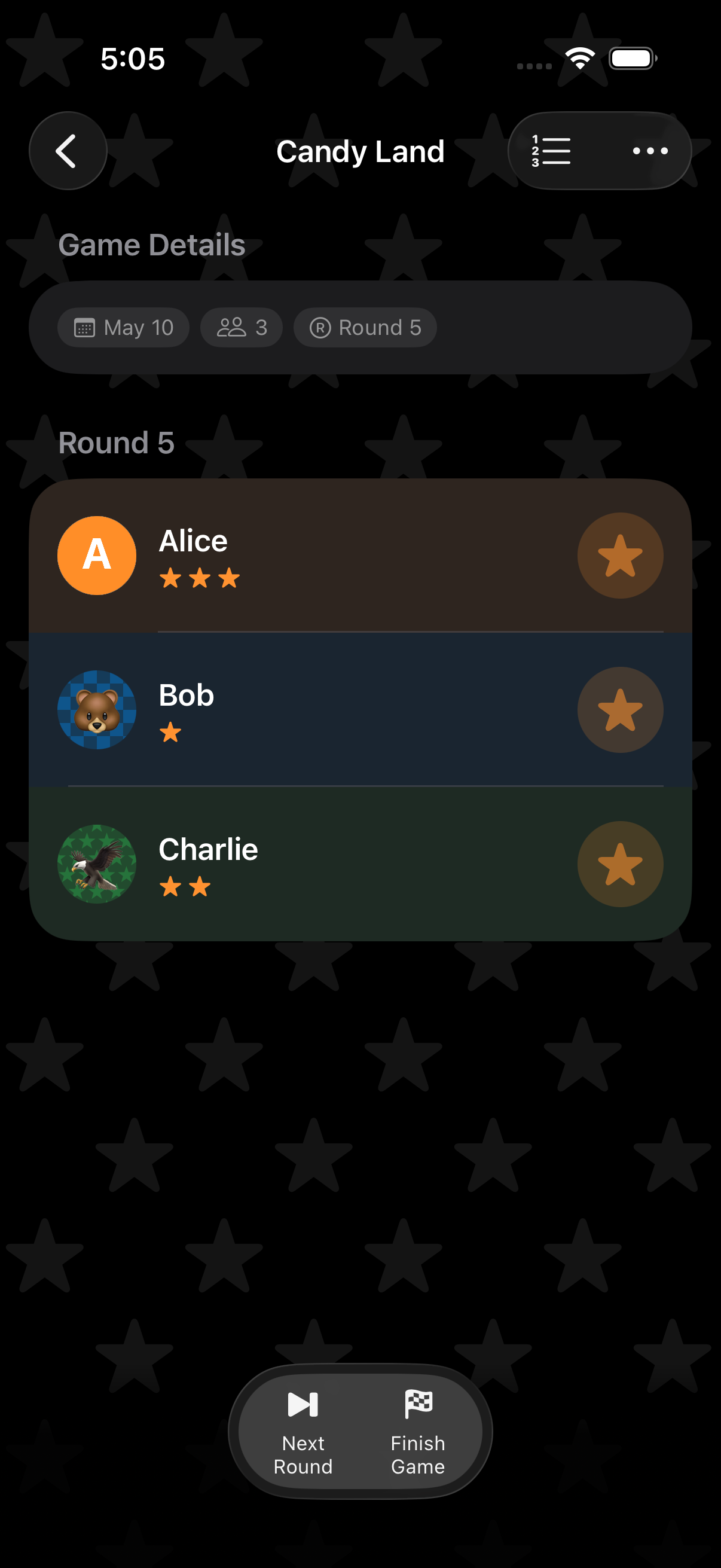
Section titled “Step 3: Score Each Round”After each party game (musical chairs, relay race, etc.), tap the outcome next to each kid:
- Win: trophy icon
- Draw: handshake icon
- Loss: flag icon
Buttons are extra-large and colourful, designed for small fingers and quick tapping.
Step 4: Hand Out Badges
Section titled “Step 4: Hand Out Badges”Kids Mode has six age-appropriate badges you can award per kid from the participant menu:
- Superstar, Great Try, Most Fun, Helper, Brave, Creative
No numeric value. They’re there to celebrate effort as much as winning.
Step 5: Celebrate
Section titled “Step 5: Celebrate”When the game finishes:
- Confetti fills the screen (respecting Reduce Motion)
- The winner is highlighted on the phone and the TV
- Tap Share to send a results card to the parents


Optional: Parental PIN
Section titled “Optional: Parental PIN”Worried kids will switch Kids Mode off mid-party? Set a 4-digit parental PIN in Settings. It’s stored in the iOS Keychain (not UserDefaults) and synced across your devices via iCloud. Without the PIN, Kids Mode can’t be toggled off.
Why Parents Love It
Section titled “Why Parents Love It”- No numbers to explain: kids understand Win / Draw / Loss instantly
- Fast: one tap per kid per round
- Visual: bright colours and large type on the TV
- Fun: confetti, badges, and celebration animations
- Put the evening in a Game Collection to track wins across every party game and crown an overall champion
- Use personas with emoji avatars. Kids love picking their own
- Custom game templates can be marked as Kids Game templates for next time
Related Guides
Section titled “Related Guides”- Kids Mode: Full details on what’s different in Kids Mode
- Family Game Night: A similar walkthrough for family board games
- AirPlay: TV display details