
Navigating the App
A quick tour of the main screens in Keeping Score!
3-Column Navigation
Section titled “3-Column Navigation”On iPad, the app uses a three-column layout; on iPhone it stacks as a drill-down:
Sidebar → Content → DetailCollections, Games list, Gameplay /Tournaments, filtered by LeaderboardKids, Pinned contextState restoration keeps your selected game in place across app launches.
Game List
Section titled “Game List”The main list shows all your games, grouped by smart date headers (Today, Yesterday, weekday names within 7 days, then full dates).
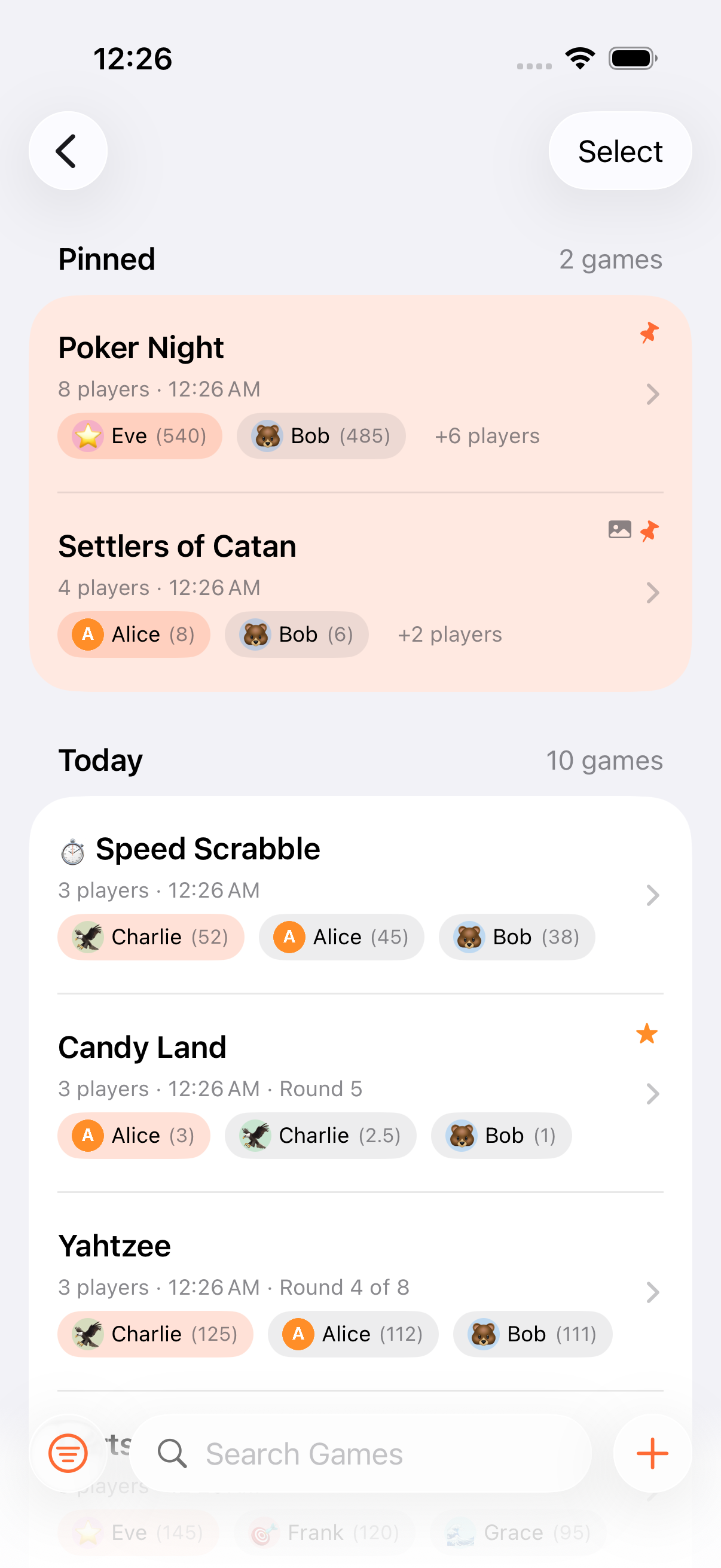
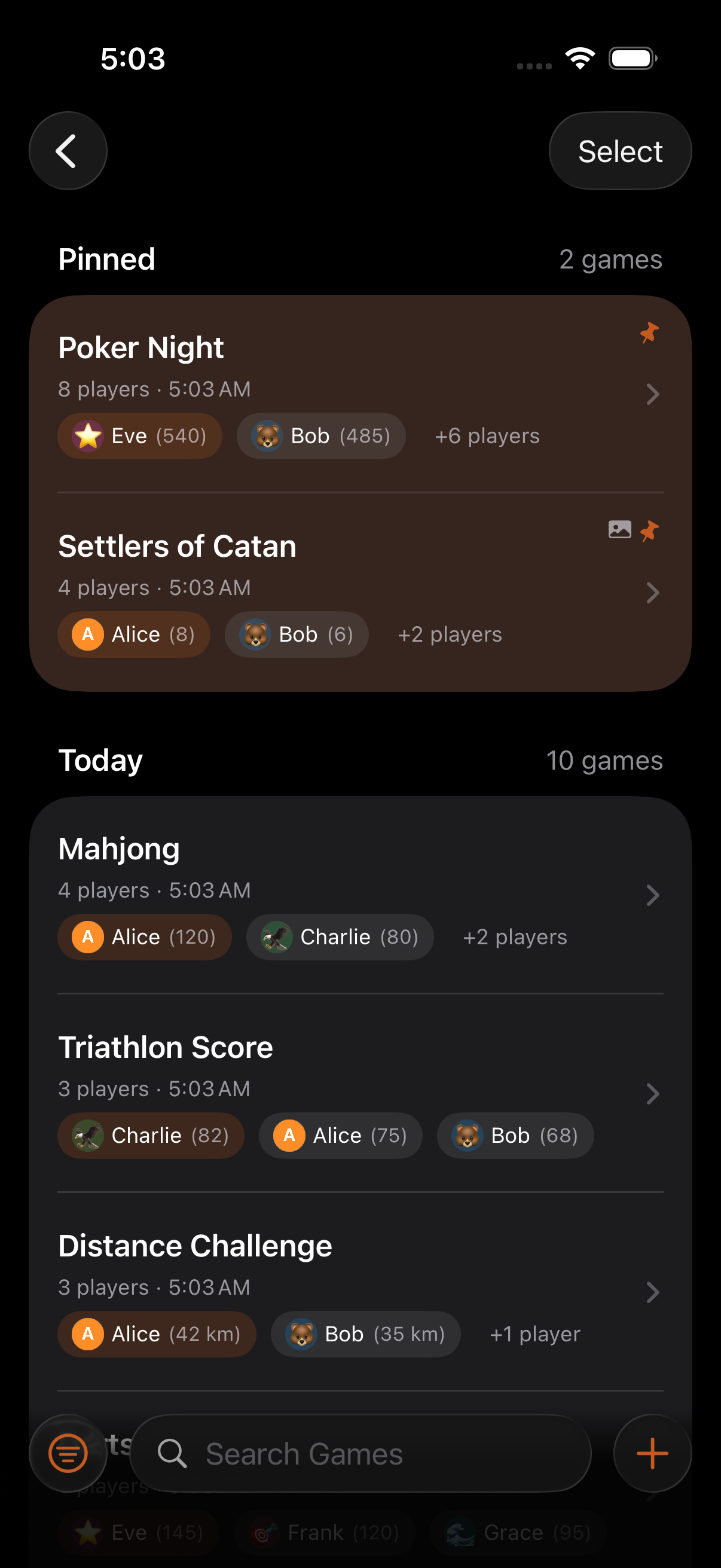
Toolbar actions:
- Filter: All, Playing, or Finished
- Search: Case-insensitive across titles, player names, and team names
- Pin: Long-press to pin a game to the top (also powers the Pinned Game widget)
- Bulk select: Multi-select and delete with confirmation
Swipe left on a row to delete (soft-delete, 30-day recovery in Settings → Data → Recently Deleted). Tap + to create a new game.
Game Detail
Section titled “Game Detail”Tap any game to open it. Two modes share the screen:
- Gameplay: Score participants with +/− buttons, or tap a row to open the calculator. The Floating Action Bar at the bottom holds round controls and timer controls and persists across sheets and navigation.
- Leaderboard: Rankings with rank badges; round-based games include the round grid with per-round scores.
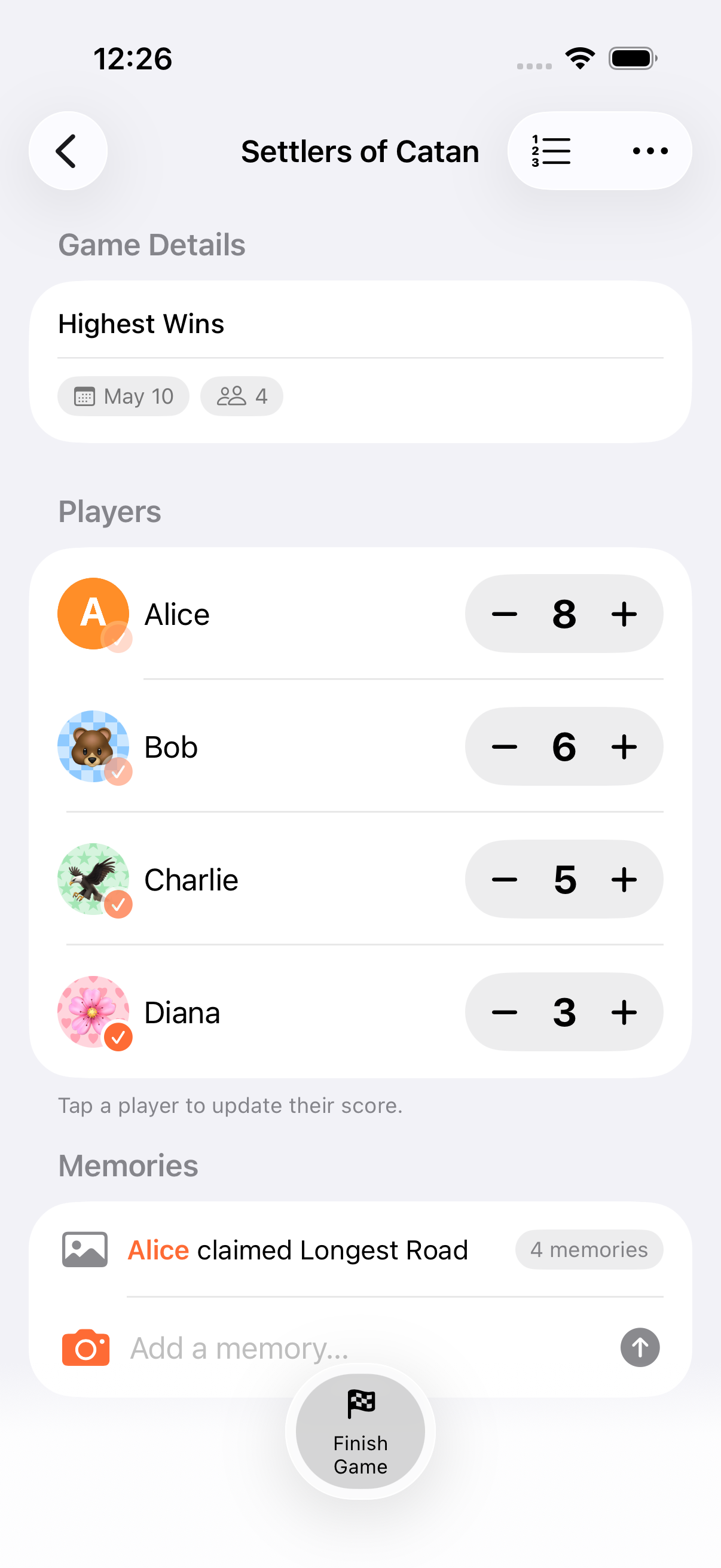
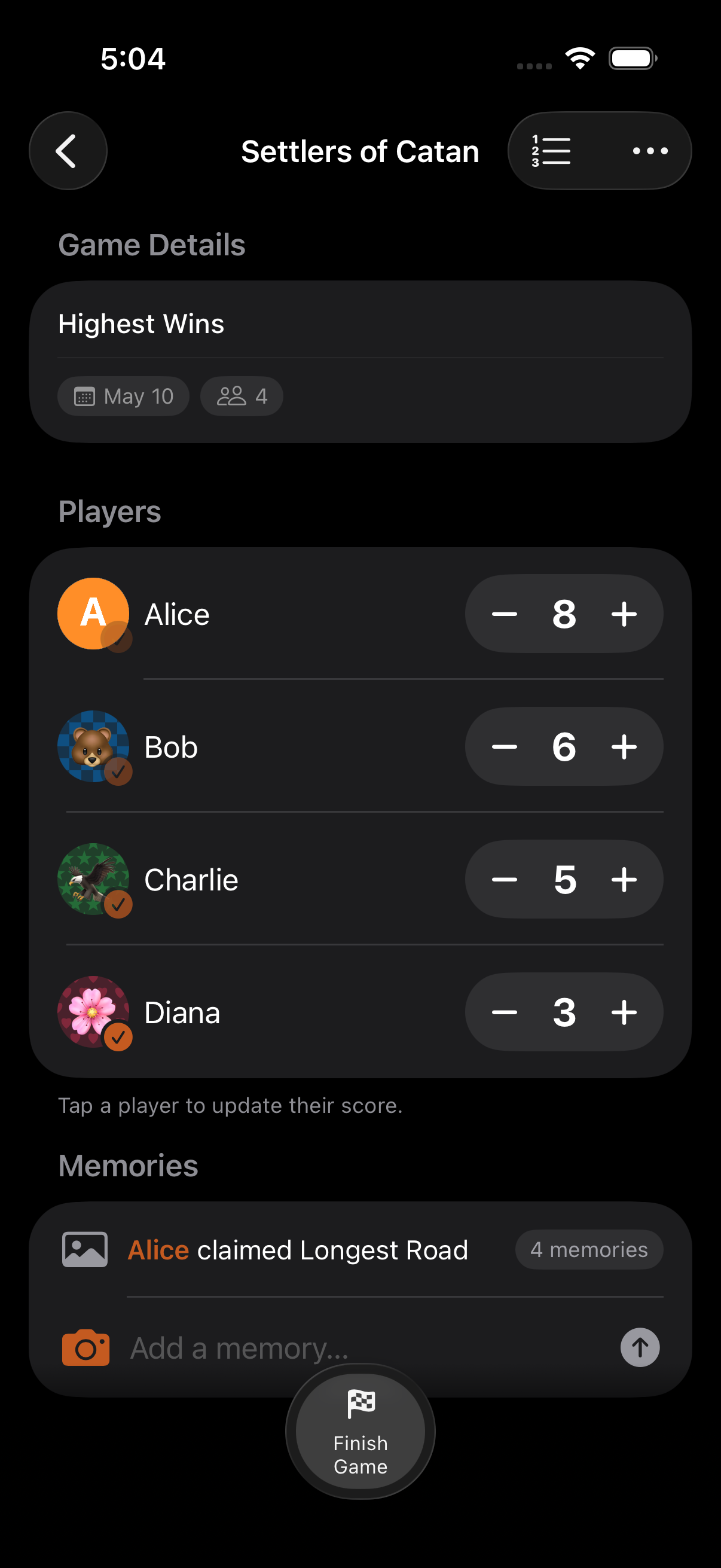
The game menu (top right) gives access to:
- Edit game settings and participants
- Finish or reopen the game
- Share results / Export as CSV or JSON
- Add a game note (auto-tagged with the current round)
- Shuffle player order, mark a dealer
Game Form
Section titled “Game Form”The form for creating and editing games. Configure:
- Title (max 100 characters) and date
- Participants: type names or pick personas
- Optionally seed from a template
- Scoring mode and direction (Count Up / Count Down)
- Starting score, score increment, scoring unit
- Rounds and end conditions
- Categories (up to 20)
- Kids Game toggle
Persona Library
Section titled “Persona Library”Access from the sidebar / game list menu. Manage saved participant profiles, view per-persona game stats, and organise personas into groups for one-tap selection when creating a game.
Game Collections
Section titled “Game Collections”Also in the sidebar. Create a collection to track multiple games as a session, with a cross-game win tally for the overall winner. Learn more in Game Collections.
Tournaments
Section titled “Tournaments”A sidebar tile listing every League, Bracket, and Groups + Final you have running, with a progress summary per row and a trophy once a champion is decided. See Tournaments.
Kids Games
Section titled “Kids Games”A dedicated sidebar filter shows only games marked as Kids Games. See Kids Mode.
Next Steps
Section titled “Next Steps”- Quick Start: Create your first game
- Family Game Night: See a full game session walkthrough